
 01
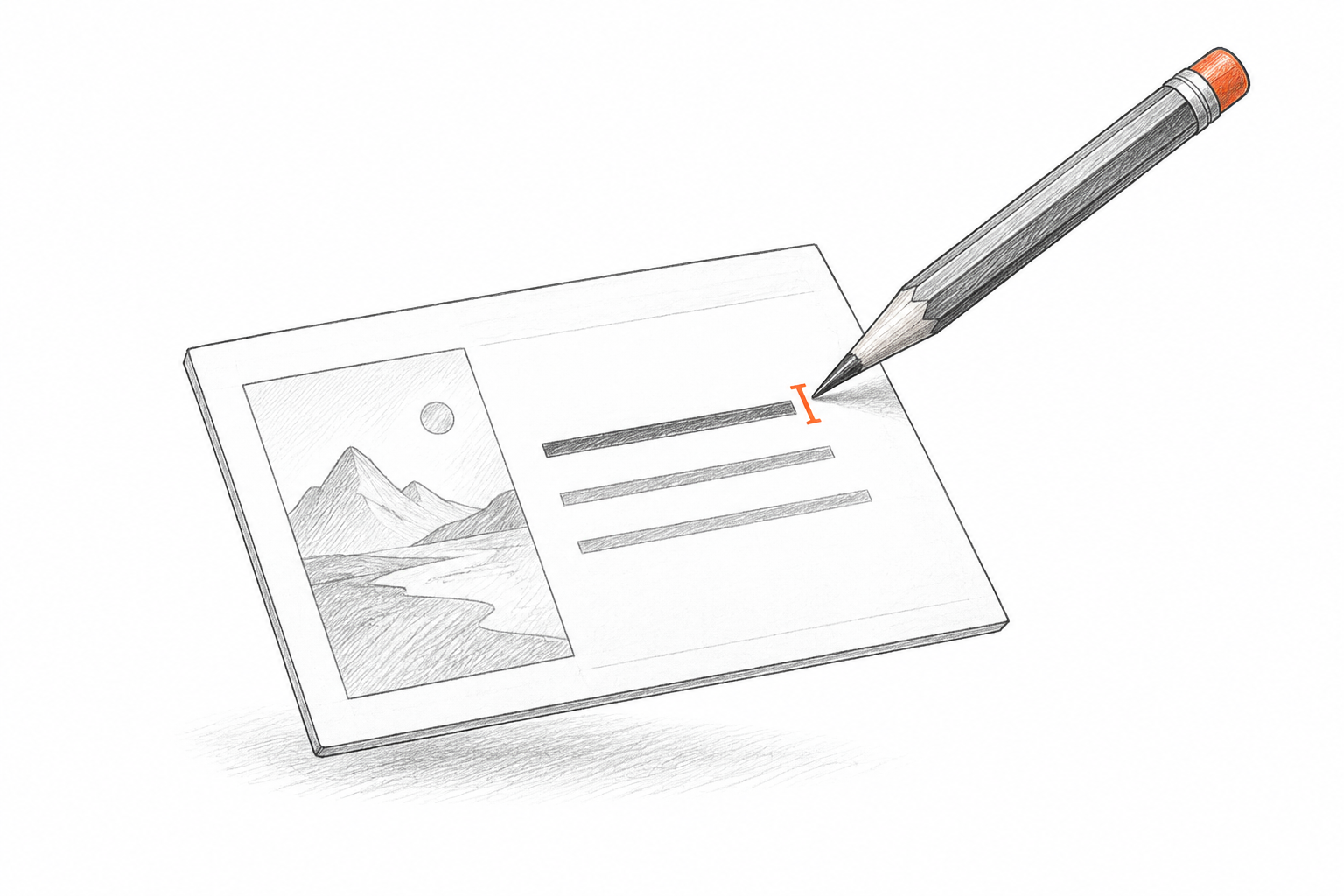
01Editable wording
Detected text becomes text boxes where possible. Correct generated labels, simplify an explanation, and update figures in the PPT.
AI IMAGE TO EDITABLE PPT
Take a generated slide image beyond its first draft. Create an editable PPT to check the facts, rewrite the wording, and adjust visual elements before sharing your presentation.
Drop your slide image here
RECONSTRUCT YOUR SLIDE
An AI image gives you a visual direction. A reconstructed PPT gives you editable content to adapt that direction for a specific audience, without recreating the whole slide.
Editable text
Separate visual elements
Reconstructed layout
INSIDE YOUR EDITABLE PRESENTATION
Use your generated design as a starting point. Review the editable presentation for accuracy, clarity, and consistency with the rest of your deck.
01Detected text becomes text boxes where possible. Correct generated labels, simplify an explanation, and update figures in the PPT.
 02
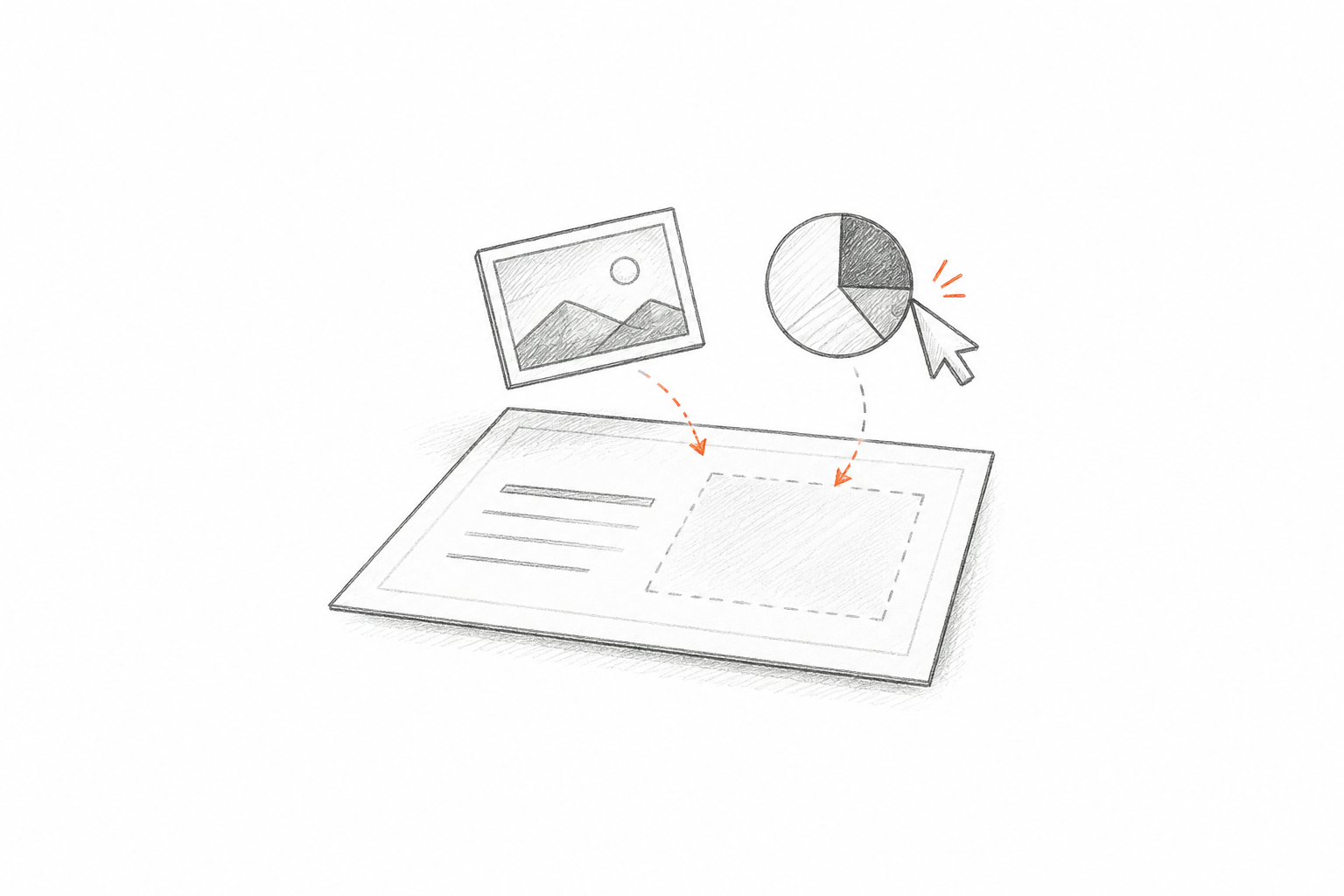
02Reposition or resize useful visual regions. Complex artwork can remain an image, preserving the design while leaving space for further changes.
 03
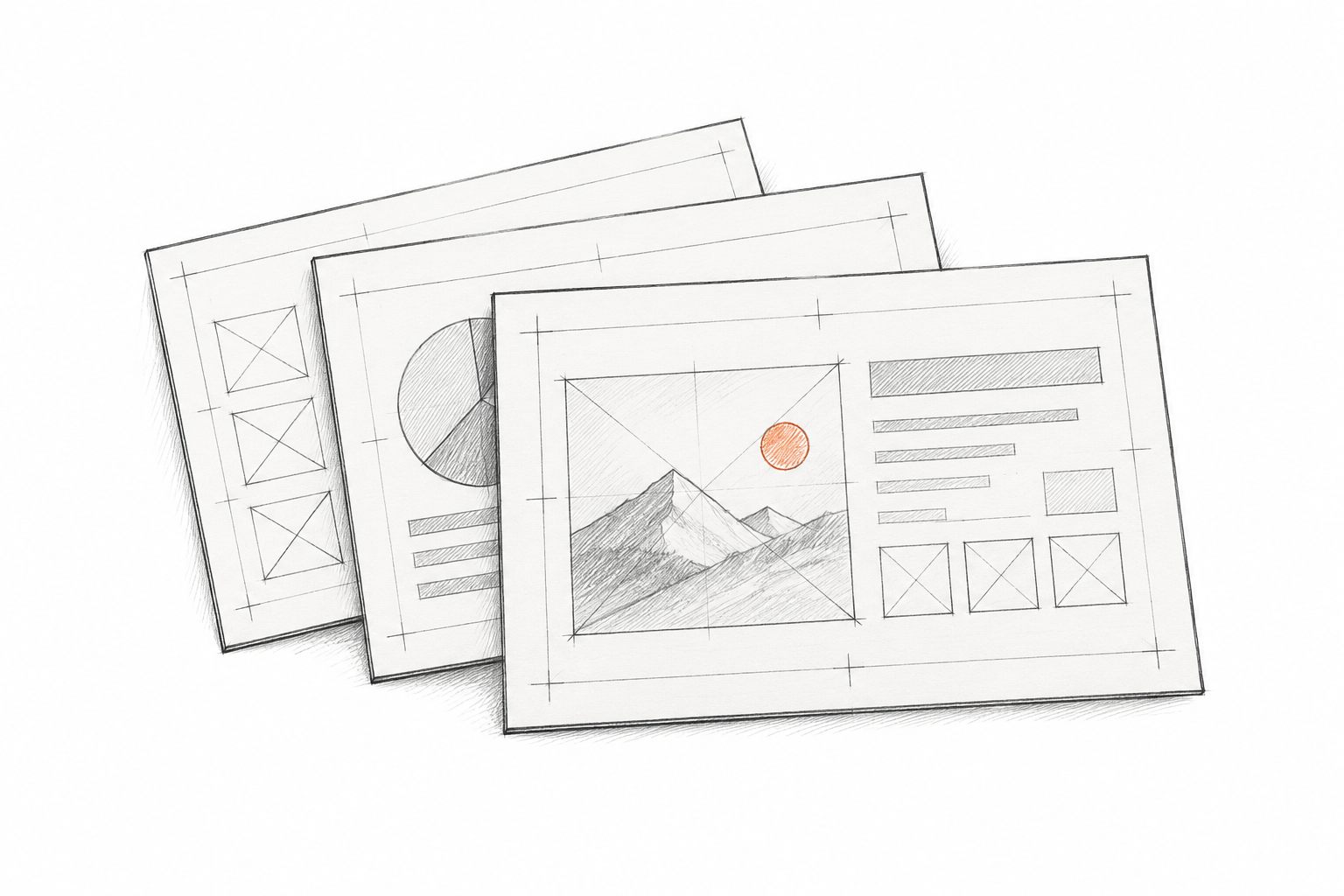
03Use the original composition as a guide. Adjust fonts and spacing on the editable slide so it fits your presentation.
Save the design from your preferred generation tool, then continue working on the slide.
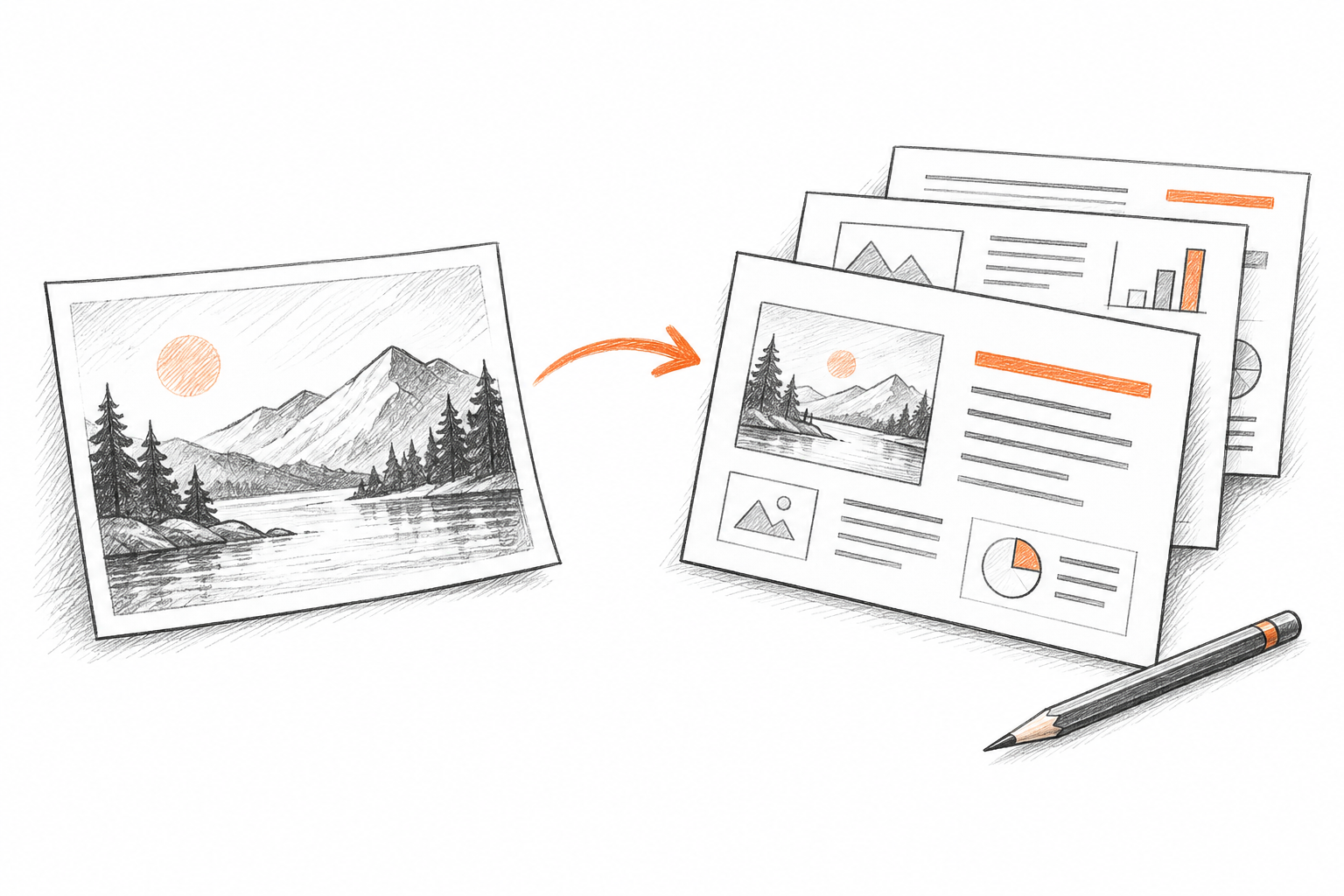
Choose a PNG, JPG, or WebP showing one complete slide. Multiple files can form one presentation within your plan limits.
We reconstruct detected text and separate visual regions from the image. Review complex artwork in the finished PPT.
Open the editable file in PowerPoint. Check generated claims and labels, then polish the design for your audience.
FROM GENERATION TO PRESENTATION
A complete AI slide export with legible text and a composition you want to keep.
Save the original file from your generation tool, rather than capturing the interface.
Use one slide per image, with all headings and labels visible.
Review generated numbers and claims; the conversion reconstructs the visible content.
Keep file dimensions consistent when building a multi-slide PPT.
Practical details for bringing an AI-designed image into a working presentation.
AI IMAGE TO EDITABLE PPT
Upload your slide image, create an editable PPT draft, and make the final version your own.
Free to try · no card required